Select Version of EA Desktop:
The Lists tool is for compiling a list of seismic, file or media items that will be part of a future workflow. The items you organize into a reserve list are stored and become accessible from the Lists, Seismic and Catalog modules.
In the Lists module, you can create a new list of items or access an existing list to continue adding or removing items as needed.
To create a reserve list from the Seismic module, refer to Create a reserve list from Seismic.
If you have a seismic list already created for your catalog session, open the list in the Assets panel for quick access. Items in the Seismic Search tab of the Assets panel are available to view and link to files in the catalog session.
To open an existing seismic list for cataloging:
-
Open the catalog session in edit mode.
-
In the Assets panel, click the Seismic Search tab.
-
On Seismic Search, click the down arrow and select Add Seismic By List.
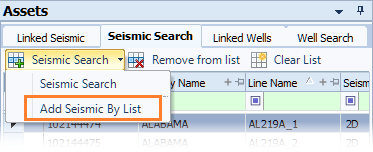
The Search window opens.
-
Enter search criteria and click Search.
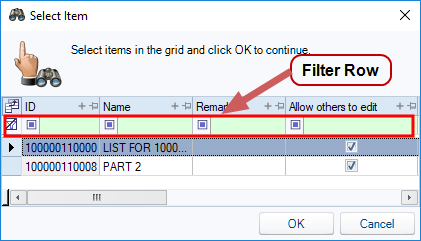
The Select Item window opens.
-
The first row of the grid is the filter row. If you have a large number of lists in your results, narrow the results by entering text in a filter field of the grid.
-
To select your target list, click in the leader column to select the list and click OK.
The window closes and the seismic from the list displays in the Seismic Search tab of the Assets panel. The seismic items are available for linking to files.
The items displayed in the search grid refresh to the most recent version of the list each time you open the catalog session.